> For the complete documentation index, see [llms.txt](https://docs.finandy.com/llms.txt). Markdown versions of documentation pages are available by appending `.md` to page URLs; this page is available as [Markdown](https://docs.finandy.com/interface/about.md).

# User Interface

The trading interface is separated into multiple sections:

<figure><img src="https://t24536365.p.clickup-attachments.com/t24536365/57677fc0-20a8-4256-9e47-60a4f92b2f85/image.png" alt=""><figcaption></figcaption></figure>

## 1. Main menu

### Exchange selection

The exchange selection is located in the upper left corner (labeled Finandy, Binance, or OKX).

<figure><img src="https://t24536365.p.clickup-attachments.com/t24536365/43df504a-b691-44fa-89ca-26e777005e1e/image.png" alt=""><figcaption></figcaption></figure>

### Market selection

The market and balance selection is located next to the exchange selection.

<figure><img src="https://t24536365.p.clickup-attachments.com/t24536365/36c66871-7e75-4f3d-9820-2e08f7e79f45/image.png" alt=""><figcaption></figcaption></figure>

### Pages

The page menu is shown in the figure and consists of the following items:

<figure><img src="https://t24536365.p.clickup-attachments.com/t24536365/e988293d-f779-4dd0-9cc0-a0271ac57ca3/image.png" alt=""><figcaption></figcaption></figure>

* [**Positions (open and closed)**](/trading/create-order-grid.md)
* [**TradingView Signals**](/algo-trading/signals-tradingview.md)
* [**Copy Trading**](/copy-trading/master-copy-trading-binance.md)
* [**Wallets**](/exchange/finandy/deposit.md)
* [**Reports**](/trading/reports.md)
* [**Account**](/settings/account.md)
* [**Settings**](/settings/settings.md)

### Pro mode toggle switch

<figure><img src="https://t24536365.p.clickup-attachments.com/t24536365/4c09bff3-f67c-455b-a010-85f567db2908/image.png" alt="" width="375"><figcaption></figcaption></figure>

Standard mode is enabled by default.

If you need more features, activate the PRO mode.

{% hint style="success" %}
PRO mode is provided for **free**.
{% endhint %}

Difference between Standard and PRO modes.

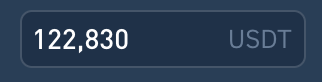
<table data-header-hidden><thead><tr><th width="249.33333333333331"></th><th></th><th></th></tr></thead><tbody><tr><td><strong>Text</strong></td><td>Standard</td><td><strong>PRO</strong></td></tr><tr><td>Main menu</td><td>Located horizontally at the top</td><td>Located vertically on the left side</td></tr><tr><td>Text fields</td><td><img src="https://t24536365.p.clickup-attachments.com/t24536365/83b02be6-fdd0-4546-9886-ee83e763c755/image.png" alt=""></td><td><img src="https://t24536365.p.clickup-attachments.com/t24536365/b2e96128-3a81-43a7-abee-ba18c679eb31/image.png" alt=""></td></tr><tr><td><mark style="color:blue;"><strong>ORDER PANEL</strong></mark></td><td></td><td></td></tr><tr><td>Order types</td><td>Limit Market Stop-market</td><td>All</td></tr><tr><td>Order grid</td><td>Hidden</td><td>✅</td></tr><tr><td>Fibonacci</td><td>Hidden</td><td>✅</td></tr><tr><td>Settings templates</td><td>Hidden</td><td>✅</td></tr><tr><td>Order Auto-cancellation</td><td>Hidden</td><td>✅</td></tr><tr><td><mark style="color:red;"><strong>STOP LOSS</strong></mark></td><td></td><td></td></tr><tr><td>Price calculation</td><td><ul><li>from breakeven price</li></ul></td><td><ul><li>from breakeven price</li><li>from average</li></ul></td></tr><tr><td>Risk calculation</td><td>Hidden</td><td>✅</td></tr><tr><td>Order types</td><td>Hidden</td><td>✅</td></tr><tr><td>Level reordering</td><td>Hidden</td><td>✅</td></tr><tr><td><mark style="color:purple;"><strong>TRAILING</strong></mark></td><td>Hidden</td><td>✅</td></tr><tr><td><mark style="color:green;"><strong>TAKE PROFIT</strong></mark></td><td></td><td></td></tr><tr><td>Order types</td><td>Hidden</td><td>✅</td></tr><tr><td>Level reordering</td><td>Hidden</td><td>✅</td></tr></tbody></table>

### News

The menu item represents the current news feed.

{% embed url="<https://t.me/finandyNewsEN>" %}

## **2. Chart**

More details about the chart functions are available at the link below:

{% content-ref url="/pages/Z0BzsLEw1cZGNcfUvsVT" %}
[Chart](/interface/chart.md)
{% endcontent-ref %}

## **3.** Tab block below the chart

### Positions (opened, closed)

More details about the position list are available at the link:

{% content-ref url="/pages/7S6AdbxvffegGRTAV4NP" %}
[Position list](/interface/positions.md)
{% endcontent-ref %}

### Opened orders

List of pending orders:

<figure><img src="https://t24536365.p.clickup-attachments.com/t24536365/ed896f9d-caa4-4f21-94f4-dbe15c373127/image.png" alt=""><figcaption></figcaption></figure>

1\. **Order number**

2\. **Filled dot** indicates an unfulfilled real exchange order

3\. **Empty dot** dot indicates an unfulfilled virtual order

4\. **Red** - Sell \
&#x20;   **Yellow** - Sell, virtual order\
&#x20;   **Orange** - Sell, executed order\
&#x20;   **Green** - Buy\
&#x20;   **Lime green** - Buy, virtual order\
&#x20;   **Blue** - Buy, executed order\
&#x20;   **Grey** - Cancelled order

5\. <mark style="color:green;">**Mark up**</mark> - increase position\ <mark style="color:red;">**Mark down**</mark> - decrease position

6\. **Order type**

7\. **Order number** in the order grid

8\. Currency pair **Name**

9\. **Number** of tokens in the order

10\. **Infographics** (described below)

11\. Position´s **Grid Number**

12\. Order price **editing**

13\. Order price **editing (unfulfilled order)**

14\. Order execution **progress** in %

15\. **Virtual Order** Indicator. Trigger type is indicated after the colon:\
\- **ob** - order book\
\- **lp** (last price) - current price\
\- **1m, 5m etc**. - Candlestick trigger based on timeframe

16\. **Order volume** (= Quantity x Price)

17\. Order creation **date and time**

18\. **Cancel** order

#### **Order infographic (10 items from the list above)**

<img src="https://1577882158-files.gitbook.io/~/files/v0/b/gitbook-x-prod.appspot.com/o/spaces%2FM4fLmMy5vt3Vv1QOjcHL%2Fuploads%2FVOuDaMTLvAmv6cBDRvtq%2Fimage.png?alt=media&#x26;token=a50aff6d-a5a4-44af-b0ee-2c74d75adea8" alt="" data-size="line"> - Take profit

<img src="https://1577882158-files.gitbook.io/~/files/v0/b/gitbook-x-prod.appspot.com/o/spaces%2FM4fLmMy5vt3Vv1QOjcHL%2Fuploads%2FMshZYqkBgKLlWLqosh4T%2Fimage.png?alt=media&#x26;token=c9bf0779-097f-4d89-a0b2-1d953d8677cf" alt="" data-size="line"> - Stop loss

<img src="https://1577882158-files.gitbook.io/~/files/v0/b/gitbook-x-prod.appspot.com/o/spaces%2FM4fLmMy5vt3Vv1QOjcHL%2Fuploads%2FvecBoj9CmRMncYiQIdlU%2Fimage.png?alt=media&#x26;token=b6ff63bf-e387-4dd6-adf3-b0bfa67f52da" alt="" data-size="line"> - Order grid

<img src="https://1577882158-files.gitbook.io/~/files/v0/b/gitbook-x-prod.appspot.com/o/spaces%2FM4fLmMy5vt3Vv1QOjcHL%2Fuploads%2FFNQZ7S8BwR07n5Y89R4a%2Fimage.png?alt=media&#x26;token=b6e761ce-c69f-4311-a251-0f043e22c9c3" alt="" data-size="line"> - Fibonacci grid

<img src="https://1577882158-files.gitbook.io/~/files/v0/b/gitbook-x-prod.appspot.com/o/spaces%2FM4fLmMy5vt3Vv1QOjcHL%2Fuploads%2Fnobz3pwdTf9bMZAyEZU7%2Fimage.png?alt=media&#x26;token=822269cf-5194-4a13-a8b8-5369543143bc" alt="" data-size="line"> - Order Auto-cancellation upon a set timeout

<img src="https://1577882158-files.gitbook.io/~/files/v0/b/gitbook-x-prod.appspot.com/o/spaces%2FM4fLmMy5vt3Vv1QOjcHL%2Fuploads%2FYSMnxyCW1qOOTuPP7XEn%2Fimage.png?alt=media&#x26;token=a8e952ae-0b2e-44db-99e5-4522dc757d82" alt="" data-size="line"> - Virtual order

<img src="https://1577882158-files.gitbook.io/~/files/v0/b/gitbook-x-prod.appspot.com/o/spaces%2FM4fLmMy5vt3Vv1QOjcHL%2Fuploads%2FPqMKAbRkBiGjnu5qXitU%2Fimage.png?alt=media&#x26;token=36675865-9ff9-47ce-aadd-660c742c2c5e" alt="" data-size="line"> - Virtual order (candlestick trigger)

<img src="https://1577882158-files.gitbook.io/~/files/v0/b/gitbook-x-prod.appspot.com/o/spaces%2FM4fLmMy5vt3Vv1QOjcHL%2Fuploads%2FEILAobfcvuS4XNTeJN3a%2Fimage.png?alt=media&#x26;token=8146b8e9-9332-49e8-8113-f6093083d939" alt="" data-size="line">- Virtual order (order book trigger)

<img src="https://1577882158-files.gitbook.io/~/files/v0/b/gitbook-x-prod.appspot.com/o/spaces%2FM4fLmMy5vt3Vv1QOjcHL%2Fuploads%2F2TyhqgldiV9bOIhfCZld%2Fimage.png?alt=media&#x26;token=3c7e19d9-e53d-4c81-8186-fb9b56189622" alt="" data-size="line"> - Trailing buy/sell

<img src="https://1577882158-files.gitbook.io/~/files/v0/b/gitbook-x-prod.appspot.com/o/spaces%2FM4fLmMy5vt3Vv1QOjcHL%2Fuploads%2F8dtt3MCQKstSnZun3zBc%2Fimage.png?alt=media&#x26;token=caf7a326-3d89-4bb0-837c-63cd128df7b3" alt="" data-size="line"> - Floating buy/sell order

### Signal log

The signal log displays information about all incoming signals. More details are described at the link:

{% content-ref url="/pages/dviQ3eC0uecanpSXpJMR" %}
[Signal log](/interface/signal-log.md)
{% endcontent-ref %}

## 4. Right-side chart tabs

### Currency pair tickers, Favorites

{% content-ref url="/pages/HwoUd14G1stEB5mkdBjW" %}
[Market (currency pairs)](/interface/blocks/tickers.md)
{% endcontent-ref %}

### Order book, favorite currency pairs

{% content-ref url="/pages/vxkJogOPM7kIHijSuZ3z" %}
[Order book](/interface/blocks/order-book.md)
{% endcontent-ref %}

### Notifications

{% content-ref url="/pages/9DFVFVJXX30obMpOc55y" %}
[Notifications](/interface/blocks/notifications.md)
{% endcontent-ref %}

## 5. Right vertical block

### Order creation panel

{% content-ref url="/pages/G8tsWkyA4VpTZOl7PTTn" %}
[Create order/grid](/trading/create-order-grid.md)
{% endcontent-ref %}

### Position settings, templates, order auto-cancellation

{% content-ref url="/pages/v76HV6YODUiQyb75Pe1u" %}
[Position settings](/interface/blocks/settings.md)
{% endcontent-ref %}

### Switching profiles

Quickly switch between added account profiles using the Profiles block.

<figure><img src="https://1577882158-files.gitbook.io/~/files/v0/b/gitbook-x-prod.appspot.com/o/spaces%2FM4fLmMy5vt3Vv1QOjcHL%2Fuploads%2FhkPXQlczalsBophNsLwS%2Fimage.png?alt=media&#x26;token=03e1a1bc-9519-4ac1-8ba2-4c6f0c467a30" alt="" width="375"><figcaption></figcaption></figure>

### Balances

<figure><img src="https://1577882158-files.gitbook.io/~/files/v0/b/gitbook-x-prod.appspot.com/o/spaces%2FM4fLmMy5vt3Vv1QOjcHL%2Fuploads%2FmtOhq5HybZFWUEhn5BE7%2Fimage.png?alt=media&#x26;token=e6cd951b-b0dd-41ef-ad4a-01da81eace1f" alt="" width="375"><figcaption></figcaption></figure>

{% hint style="info" %}
You can move and sort blocks 4 and 5 using the mouse, as shown in the screenshot below:
{% endhint %}

<figure><img src="https://t24536365.p.clickup-attachments.com/t24536365/060f2bd0-f118-4919-9a10-fb33c1e1656c/image.png" alt=""><figcaption></figcaption></figure>

## 6. Pop-up notifications

Messages related to various events such as order creation, execution, errors, and system operation issues, appear in pop-up windows located at the bottom right of the screen.

<figure><img src="https://t24536365.p.clickup-attachments.com/t24536365/9bf40af9-231d-43a9-b357-80f6cd045c30/image.png" alt="" width="375"><figcaption></figcaption></figure>

Clicking on a message shows its details.

<figure><img src="https://t24536365.p.clickup-attachments.com/t24536365/719e204e-fb1c-4731-a3b0-2f670d6161f8/image.png" alt="" width="375"><figcaption></figcaption></figure>

Notification center on the chart's right side stores all messages.

<figure><img src="https://t24536365.p.clickup-attachments.com/t24536365/ebdc6094-eafb-4f00-bb7e-b457f96ce450/image.png" alt=""><figcaption></figcaption></figure>

**Do you have any questions? We can help you in our Telegram chat .**

{% embed url="<https://t.me/finandy>" %}