
Order grid
✔ Description on creating a grid of orders. Learn how to set up order type, volume, auto-refresh levels and other parameters for effective trading.
Display in interface
To display grid in standard interface, navigate to 'Settings' and select 'Order Creation' (1).

Here you can enable the display of grid functionality (2) and click save changes (3) for them to take effect.

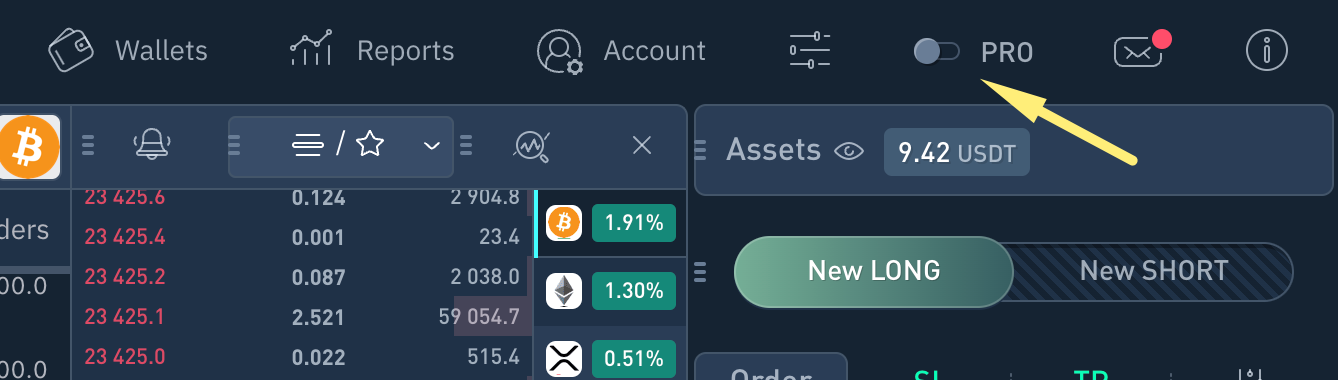
When using PRO mode, grid functionality is automatically activated and displayed in the interface.
Creating Order Grid
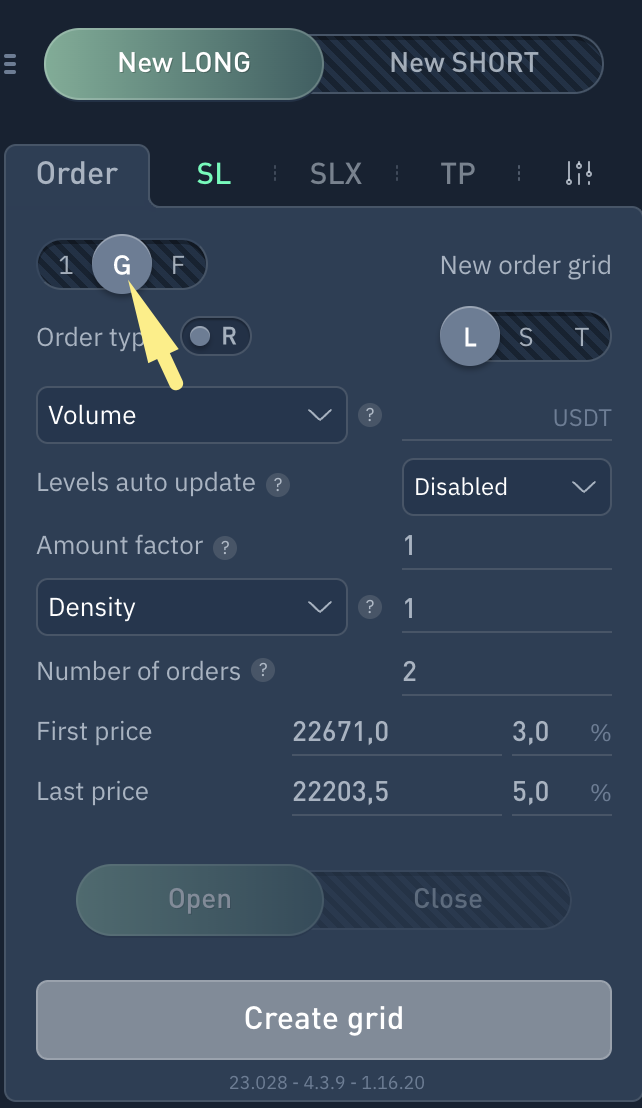
To create an order grid, select the symbol "G" in the order creation form and define the following parameters:
Order Type
Volume / Total quantity of all orders in the grid
Auto-update levels
Quantity multiplier
Density / Step in %
Number of orders in the grid
First and last price in the grid
Auto-cancel order
1. Order type
The order form supports multiple order types.
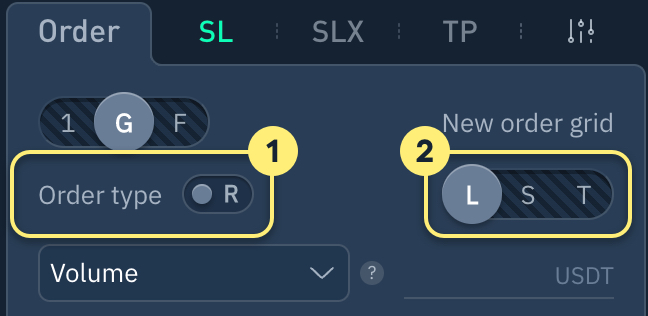
Real or virtual orders: R - real orders. Order sent to the exchange. V - virtual orders. Order is created in terminal and only sent to the exchange when activation conditions are met.
Order types to place on the exchange: L - Limit F - Floating M - Market S - Stop Market T - Trailing
If you create and cancel multiple orders without execution as part of your strategy, we recommend choosing a virtual order type due to Binance's limit on the number of non-executed orders. More information.
You can adjust the number of real orders closest to current price in grid order settings.
In most cases "L" (Limit) order type is used.
Order types2. All grid orders Volume / Amount
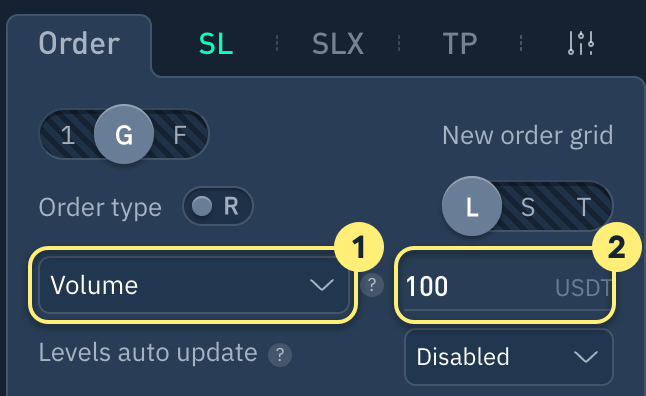
Select Volume (sum) or Amount.
Enter the token volume or amount across all Grid orders.
Please note that volume of each order on the Grid must meet the minimum requirement set by exchange rules.
For example, if you assign the total Grid volume to 100 USDT and spread it evenly over 4 orders, each order's volume will be 25 USDT.
3. Auto-update level
Disabled by default.
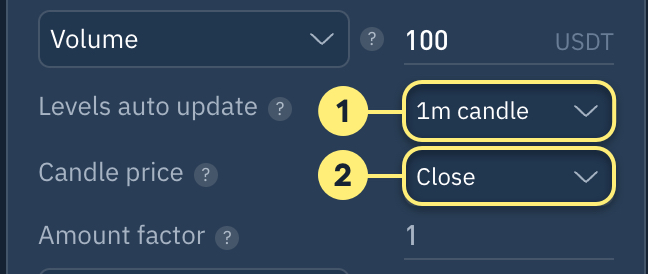
If a timeframe (1) is set, the system checks the candle's High/Low price at its close (based on item 2 selection). If the price has increased (for buying) or decreased (for selling), the grid border will be adjusted towards Close or High/Low price, leaving the other border in place:
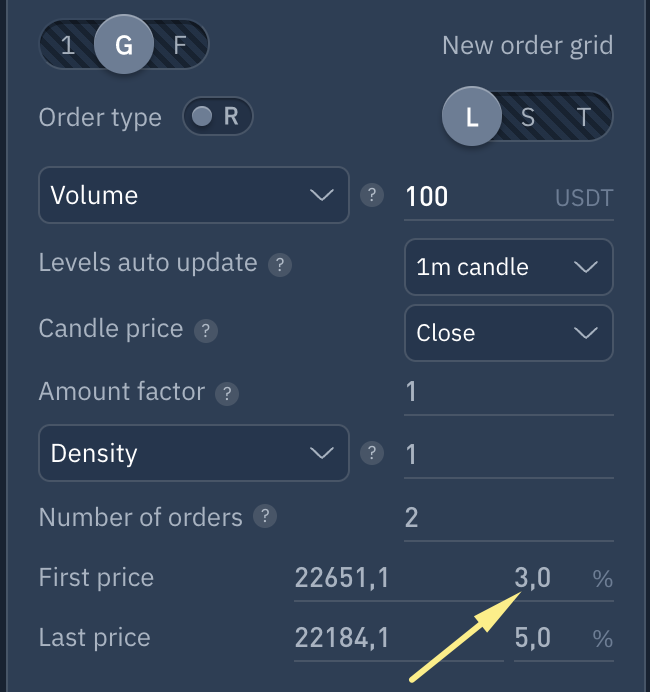
4. Amount factor
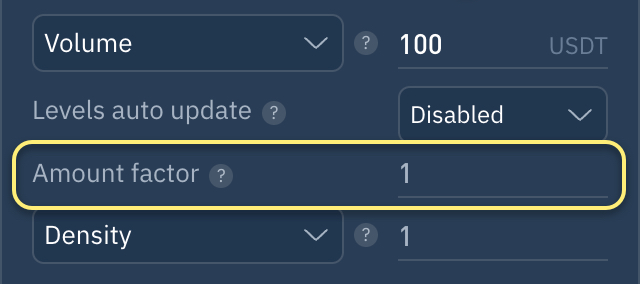
Order grid volume distribution is controlled by this parameter.
For example, if Multiplier = 2, each subsequent order will be 2 times larger than the previous one, starting with the one closest to the trend. And if Multiplier = 0.5, then each successive order will be half the size of the previous one.
The default value is 1, which means that the quantity is evenly distributed among orders.
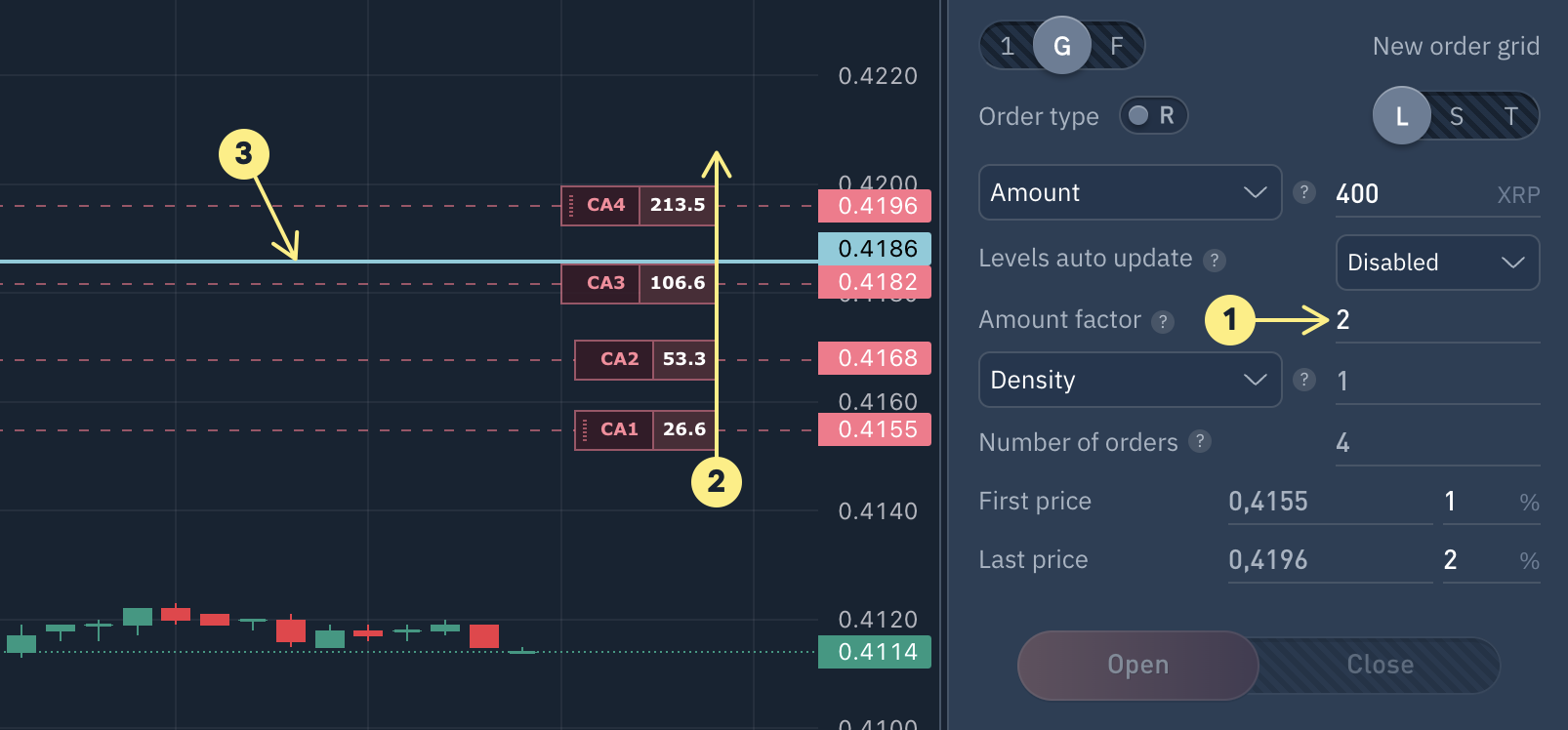
Order quantity multiplier.
Preview graph displays order quantity distribution.
Position's average price when all grid orders execute is shown. Grid's middle line can be hidden in settings.
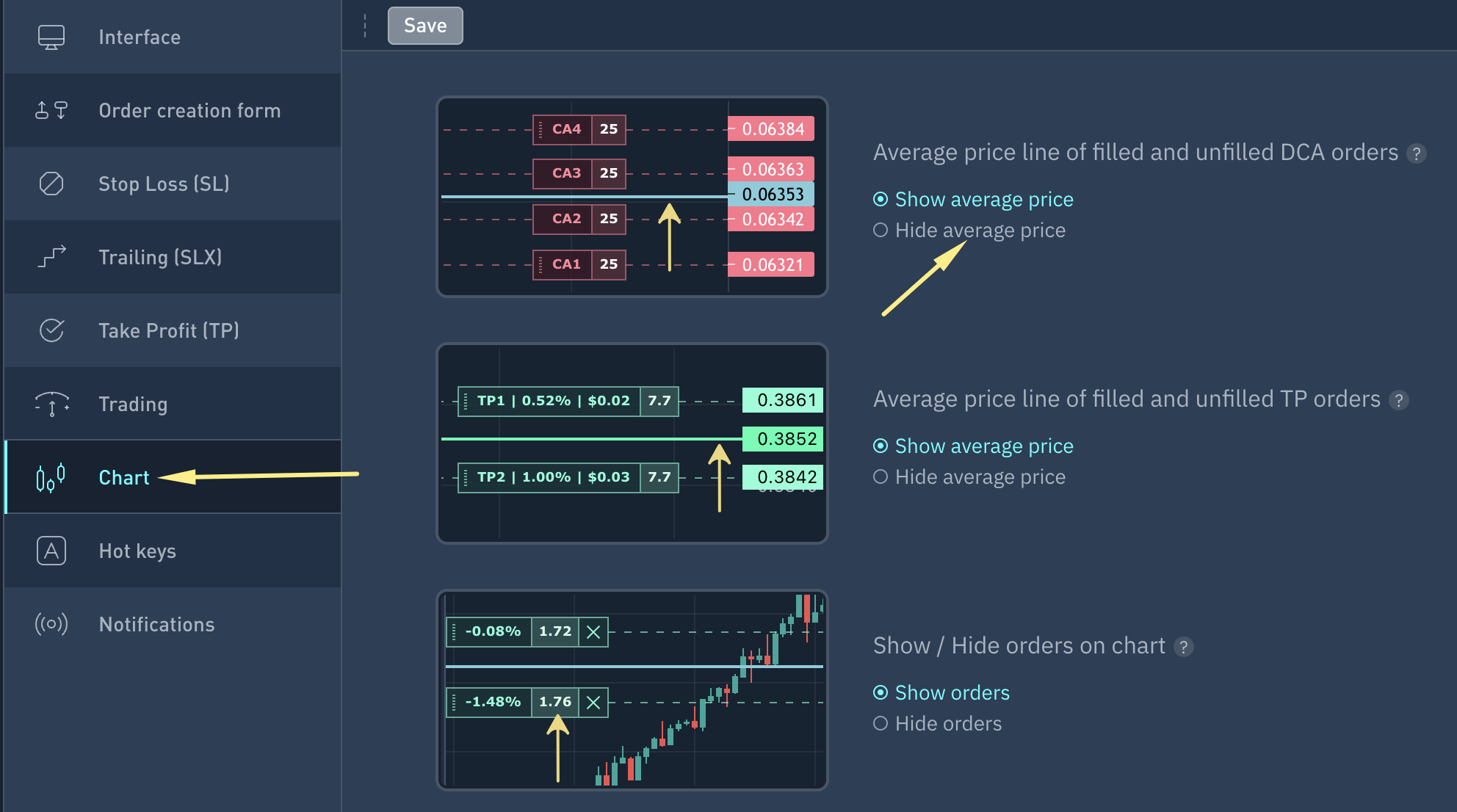
Enter a specific volume or amount in the Grid to preview orders with those parameters.
5. Density / Step in %
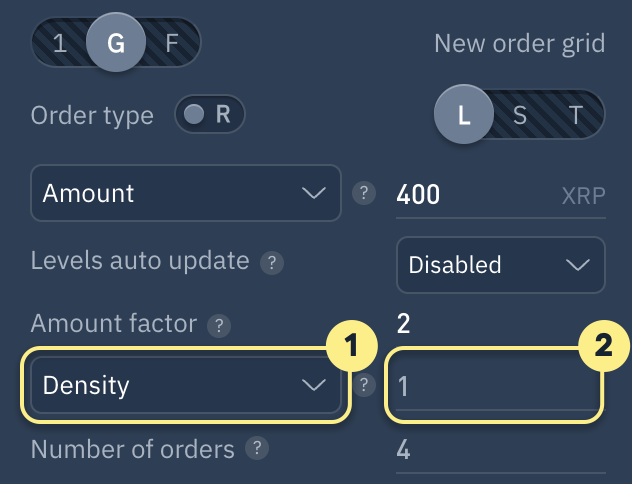
Select Density or Step in %.
Specify value for selected option. By default is 1.
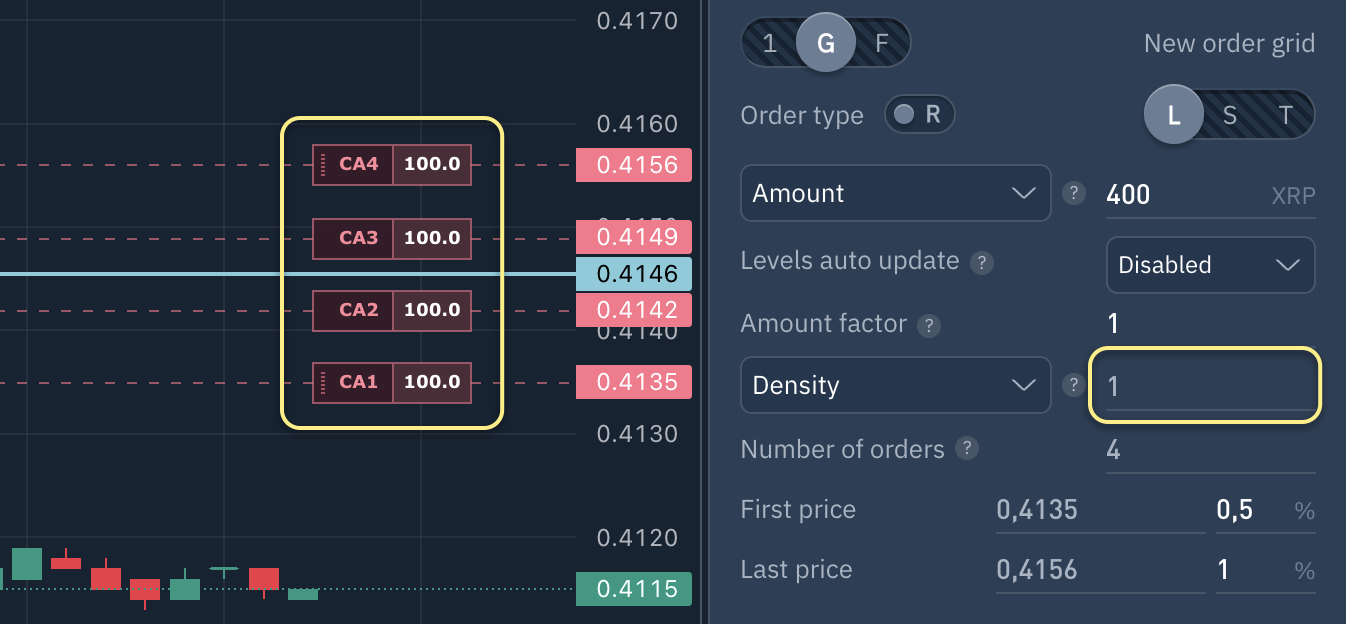
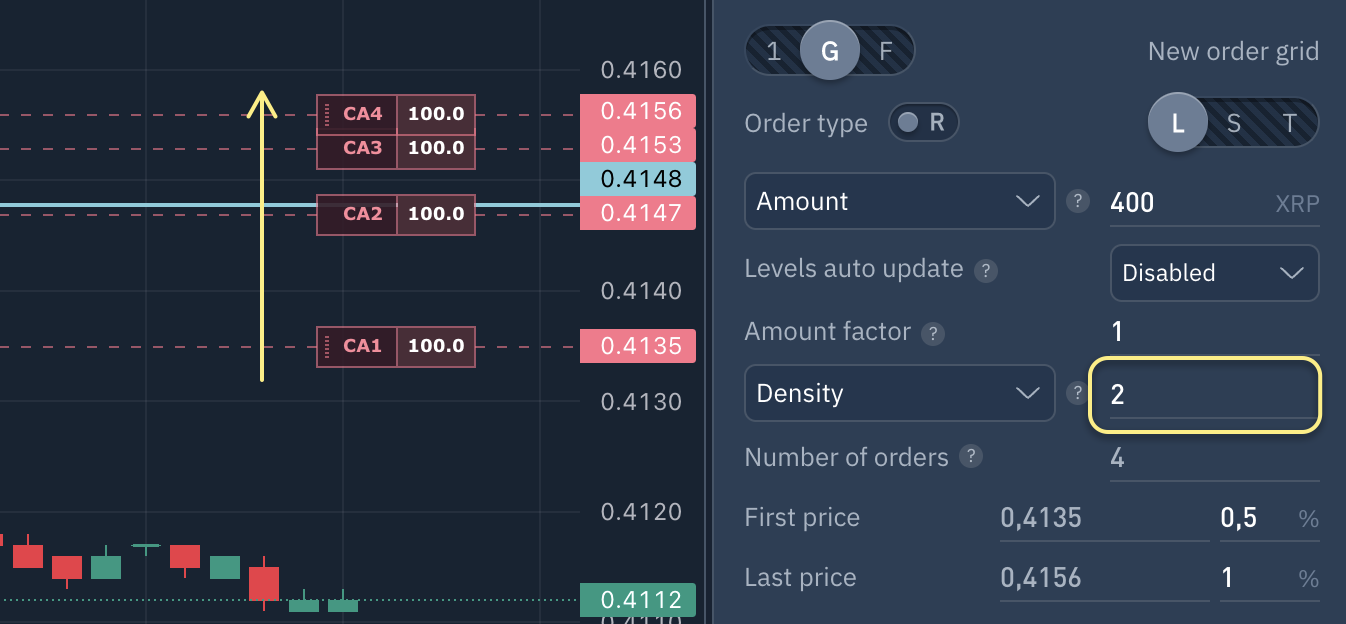
If 'Density' is selected and set to 1, orders will be evenly distributed in the grid. If set to a value greater than 1, orders will be concentrated closer to the grid´s end, and if less than 1, closer to the beginning.
Density = 1
Example of order distribution with Density=1. The uniform step between grid orders is clearly visible.
Density > 1
Example of order distribution with Density greater than 1 (value set to 2). The shift in order density toward the farther step (toward the 4th step) is clearly visible.
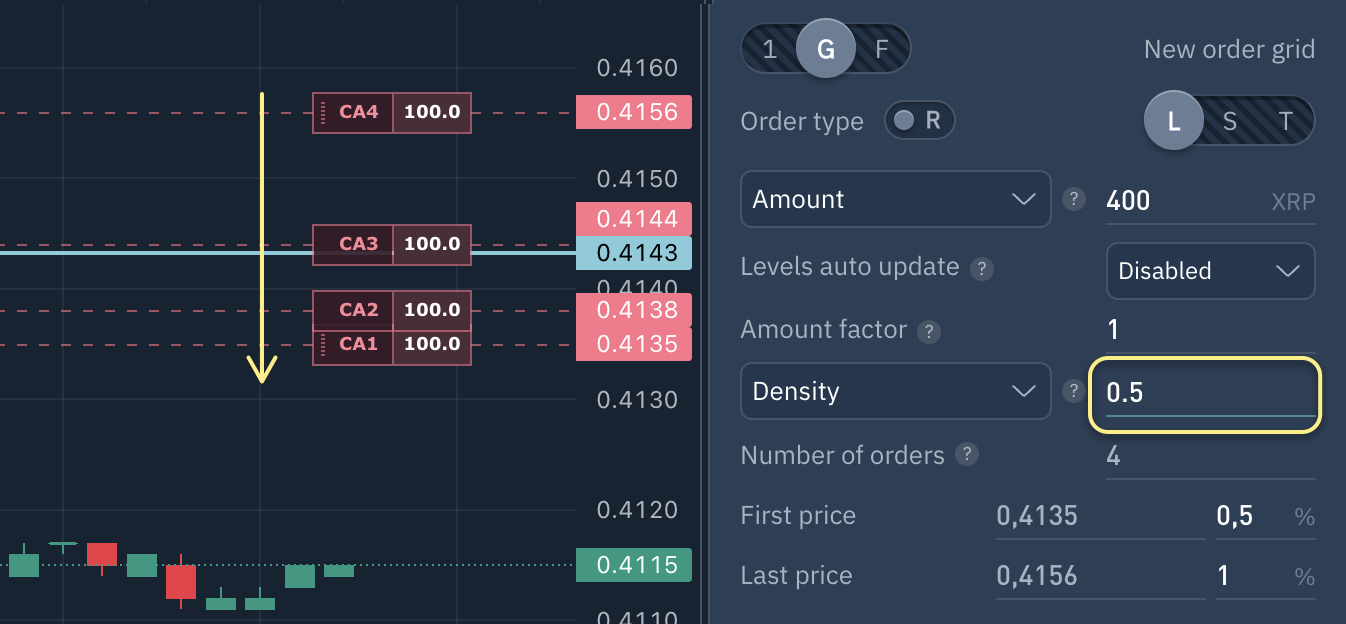
Density < 1
Example of order distribution with Density less than 1 (value set to 0.5). The shift in order density toward the first step is clearly visible.
Step in %
When 'Step in %' is selected, Grid orders will be placed with a distance equal to specified percentage.
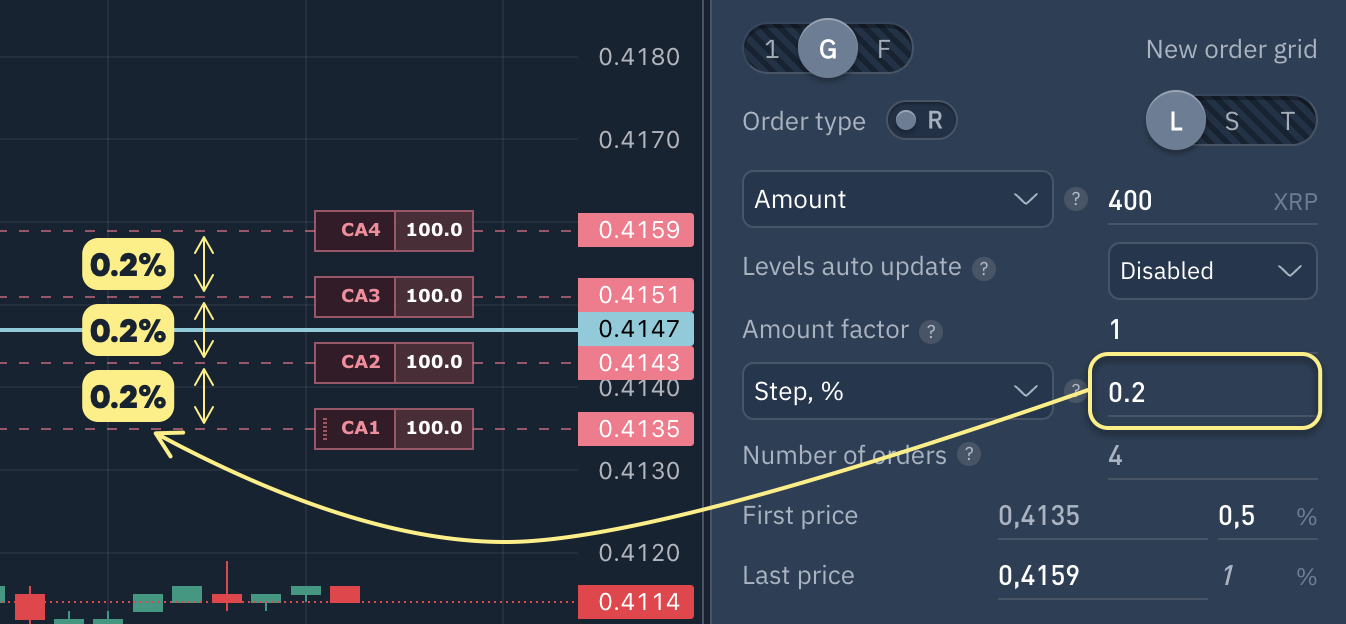
Last order price in grid is auto-calculated and non-editable.
6. Number of Grid Orders
Minimum 2 orders, maximum 30.

7. First and last Grid price
Customise start and end prices/percentages of order grid.
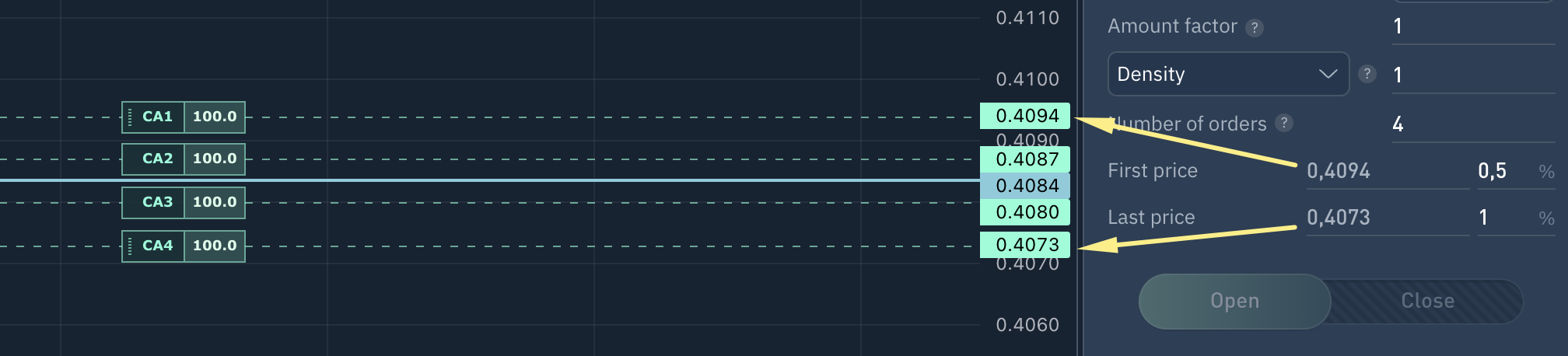
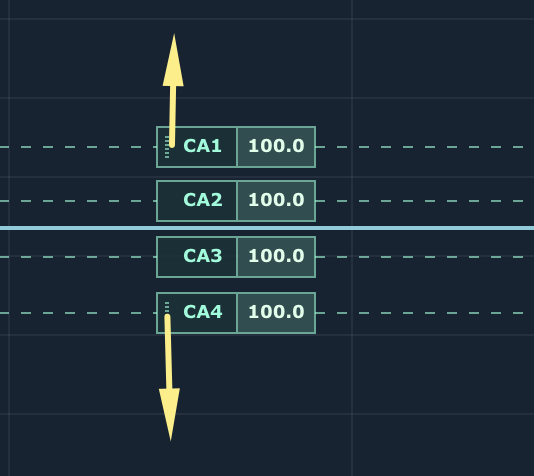
Change external orders prices on chart using the mouse.
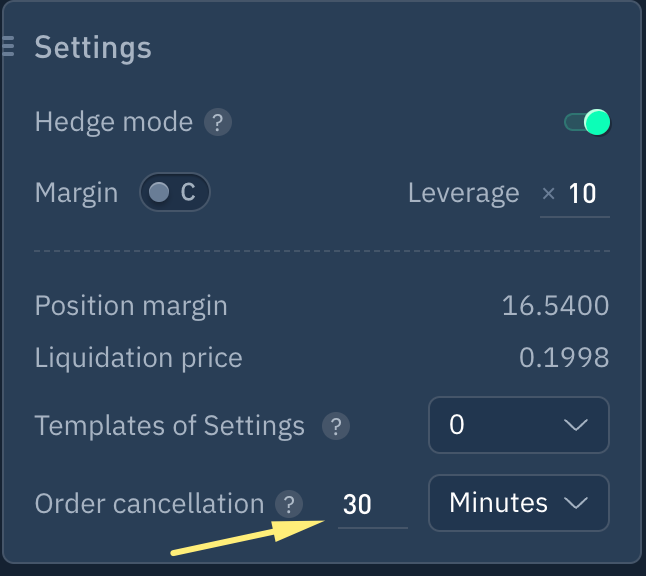
8. Order Auto-cancellation
Set auto-cancellation time in position settings to cancel orders automatically. Grid order execution deactivates auto-cancellation.
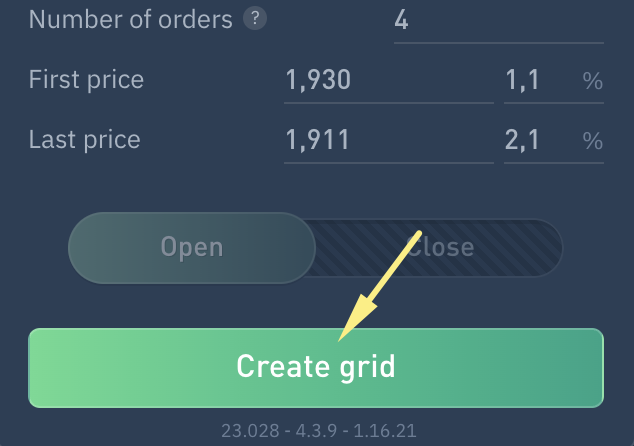
To create a Grid, click "Сreate Grid" button.
Edit Order Grid
In order panel
After creating a Grid, a control box for the Grid appears on the right side of "1 order or grid" selection.
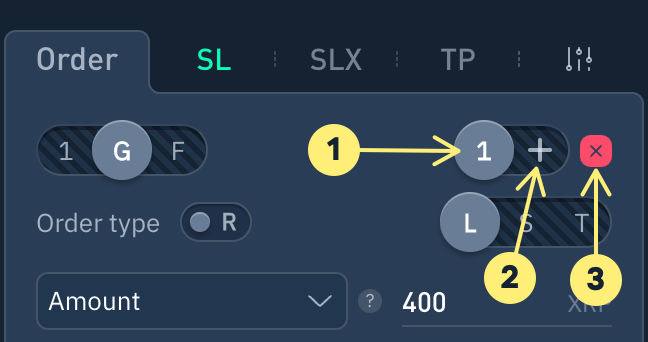
1. Edit an existing Order Grid by modifying Grid's order number or volume, and adjusting any other relevant parameters. Click 'Modify Grid #1' after making changes.
2. Create new grid at current position.
3. Cancel selected Grid (Grid #1 in screenshot).
Changing order price on chart
Modify order position on chart by clicking and dragging the order's left side.
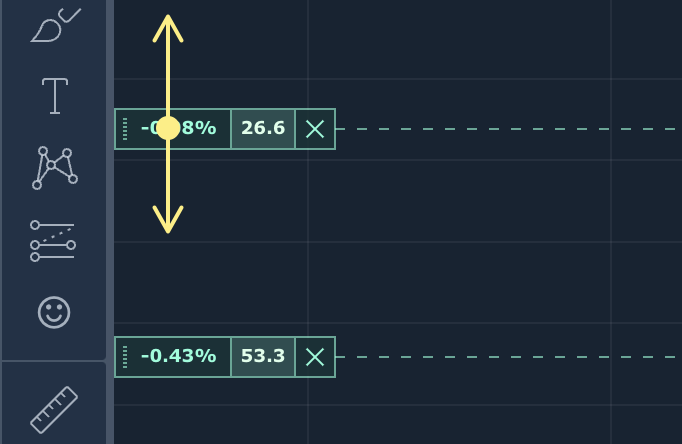
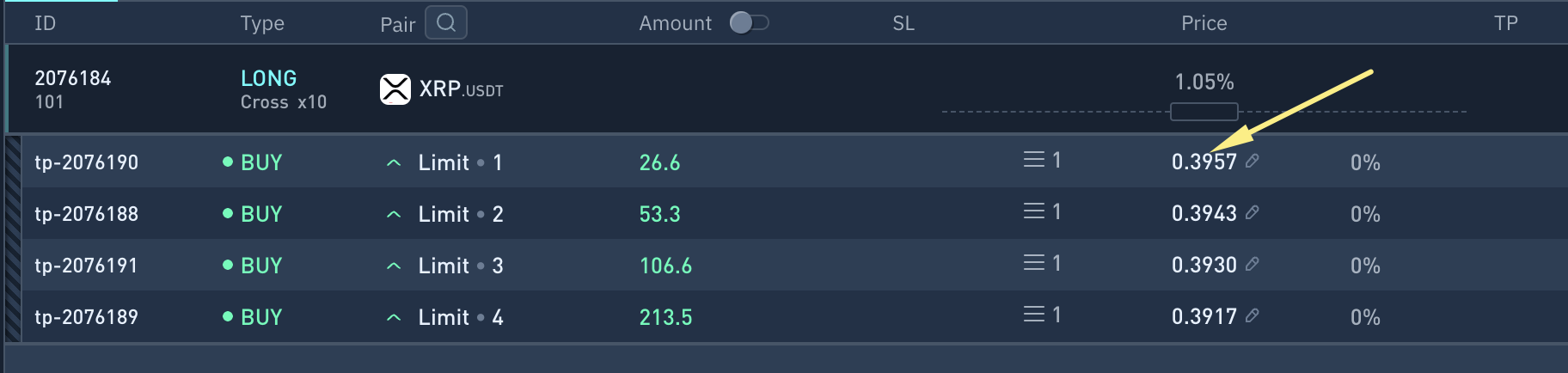
Adjusting position order price
Expand a position by clicking on the position line (excluding currency pair name). Clicking currency pair name will open currency pair chart.
Click on price field in the order list, modify price and press Enter, or click outside the field to save changes.
Frequently asked questions
###What causes missing orders in the Grid?
The following restrictions must be kept in mind when placing an order on an exchange:
minimum number of tokens per order
maximum number of tokens per order
not all orders on Grid are real
insufficient margin in futures market
minimum bid price
maximum bid price
minimum order size (price x quantity)
maximum order size (price x quantity)
number of executed orders relative to the number of cancelled orders must be greater than 0.01%.
The first 4 limitations are the most common.
Do you have any questions? We can help you in our Telegram chat.

Last updated